
Animation Editor
BetaFix AI-generated spritesheets and turn messy frames into clean animations
by Probably Playable — v1.0.0
 1/3
1/3 Description
The problem
You ask your AI to generate a spritesheet — an explosion, a walk cycle, an attack animation. What you get back is almost right: the frames exist, but they're misaligned, badly cropped, inconsistently scaled. The AI doesn't know how to center sprites consistently across frames. You can't use this raw spritesheet in your game — each frame wobbles, shifts, or clips.
The solution
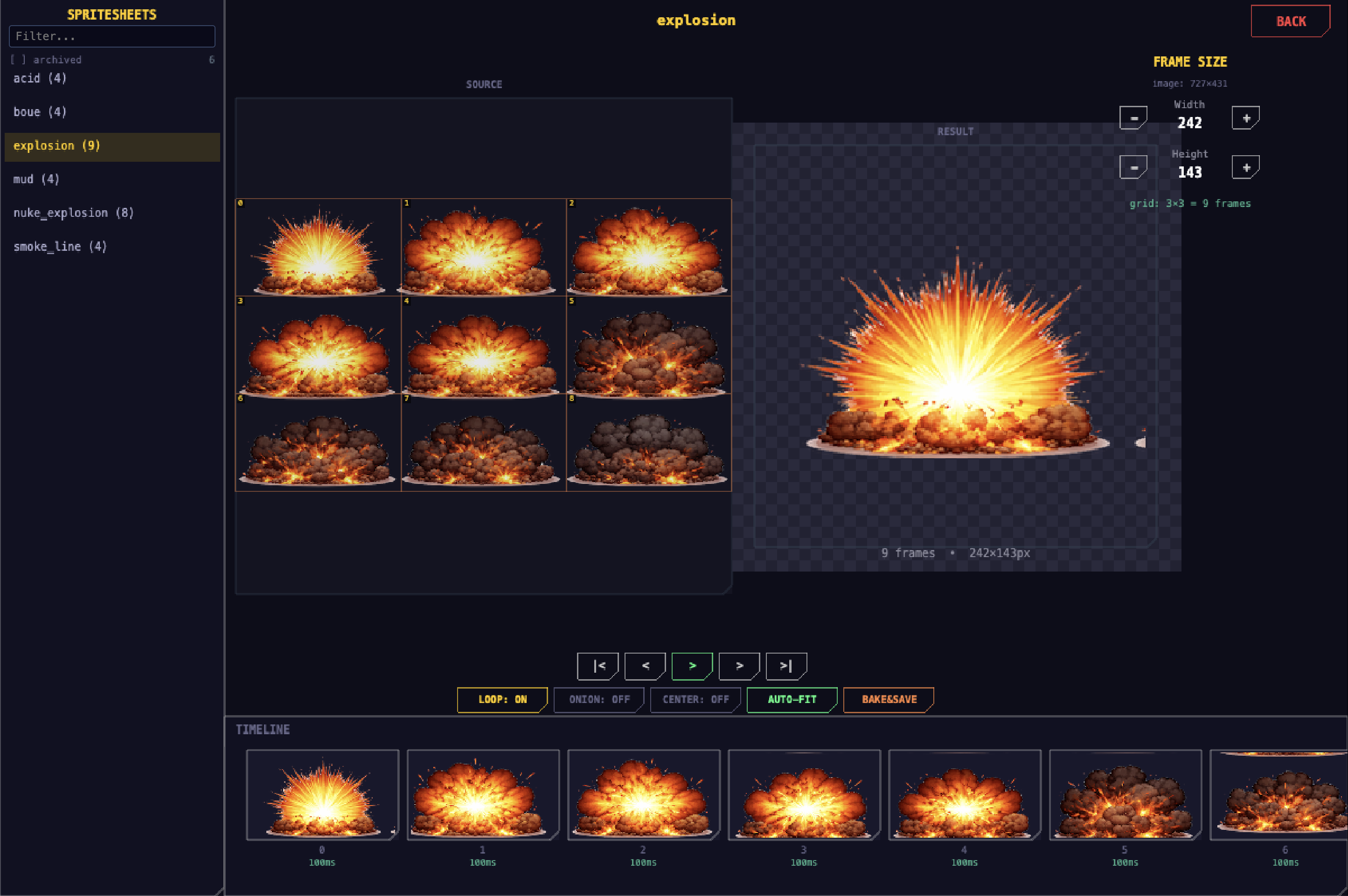
The Animation Editor lets you visually fix AI-generated spritesheets without leaving your game. Load any spritesheet, then:
- → Adjust each frame — reposition, rescale, crop bounding boxes with drag handles
- → Auto-fit — one-click pixel detection that finds sprite boundaries and centers them
- → Reorder & time — drag frames in the timeline, set per-frame duration
- → Preview live — real-time playback with onion skinning to compare frames
- → Bake & export — bake all fixes into a new clean spritesheet PNG
Your AI generates the raw material. This tool turns it into a usable animation.
Keyboard shortcuts
| Key | Action |
|---|---|
| Space | Play / Pause |
| Arrows | Navigate frames, adjust offset |
| Ctrl + Arrows | Resize bounding box |
| Cmd/Ctrl + D | Duplicate frame |
| Delete | Remove frame |
| ESC | Exit (prompts to bake if unsaved) |
Dependencies
- Phaser 3.60+
Technical Details
- Version
- 1.0.0
- Status
- Beta
- License
- MIT
- Size
- 30 KB
- Author
- Probably Playable
- Updated
- 2025-04-04
AI Integration Skill
Drop into .claude/skills/ — your AI handles the rest.
Animation Editor — Integration Skill
Use this skill when the user asks to "add animation editor", "sprite animation tool",
"preview animations", "edit spritesheet frames", "crop sprites", or "bake spritesheet".
WHAT IT DOES
A full spritesheet animation editor built as a Phaser 3 scene. Load any spritesheet,
define frame sequences with per-frame timing, crop bounding boxes with pixel-perfect
precision, preview with onion skinning, and bake optimized sprite strips.
REQUIREMENTS
- Framework: Phaser 3.60+
- Language: TypeScript (strict mode)
- Dependencies: None (self-contained, no EventBus needed)
- Storage: Uses localStorage for persistence (key:
rfd_anim_defs) - Files: 5 TypeScript files (~2,300 LOC total)
FILE STRUCTURE
animation-editor/
  AnimationPreviewScene.ts   — Main scene entry point, keyboard shortcuts, playback loop
  AnimPreviewState.ts        — Shared mutable state interface
  SourcePanel.ts             — Left panel: spritesheet grid, bbox handles, pixel analysis
  PreviewPanel.ts            — Right panel: live preview, onion skin, bake & export
  AnimToolbar.ts             — Bottom: timeline, frame props, sheet props, sidebar
  layoutConstants.ts         — Shared geometry constants (panel sizes, offsets)
INSTALL
- Copy the
animation-editor/folder into your project'ssrc/scenes/directory. - Register the scene in your Phaser game config:
- To use saved animations at boot time, call the registration helper:
create()— Initialize all panels, discover spritesheets, build UIupdate(time, delta)— Handle playback timerautoFitFrames()— Flood-fill pixel analysis for automatic bounding box detectionrefreshSheetView()— Redraw grid overlay and frame numbersdrawBboxOverlay(frameIdx)— Create draggable bbox corner handlesshowFrame(idx)— Render frame with onion skins and bboxbakeAndSave()— Batch-bake all frames to PNG, POST to serverhasPendingAdjustments()— Check if unsaved changes existbuildTimeline()— Frame thumbnails with drag-to-reorderbuildFrameProps()— Duration, offset, scale, bbox spinners- Shared
AnimPreviewStateobject (passed to all sub-panels) - Direct callback references (
AnimToolbarCallbacksinterface) - Spritesheets must be preloaded — The editor discovers sheets via
this.textures.list. Load your spritesheets in a preload scene before launching the editor. - Only sheets with frameTotal > 2 are shown — Single-frame images are filtered out.
- localStorage key collision — Uses
rfd_anim_defs. If you have multiple projects on localhost, they'll share definitions. Change the key if needed. - Bake endpoint is optional — Without
/api/save-spritesheet, the editor works for previewing and defining animations, but can't export PNGs to disk. - ESC exits — Pressing Escape will leave the editor scene. If there are unsaved bake changes, it prompts first.
- Canvas size matters — Layout constants assume a game canvas of ~1200x800. Adjust
layoutConstants.tsfor different resolutions.
import { AnimationPreviewScene } from './scenes/animation-editor/AnimationPreviewScene';

const config: Phaser.Types.Core.GameConfig = {
  // ... your existing config
  scene: [
    // ... your existing scenes
    AnimationPreviewScene,
  ],
};
// In your BootScene.create() or preload completion:
import { registerSavedAnimations } from './scenes/animation-editor/AnimationPreviewScene';

registerSavedAnimations(this); // 'this' is the current Phaser.Scene
INTEGRATION
Launch the editor from any scene:
// Open the animation editor
this.scene.start('AnimationPreviewScene');

// Or launch as overlay (keeps current scene running underneath):
this.scene.launch('AnimationPreviewScene');
Use saved animation definitions:
import { loadAnimDefs } from './scenes/animation-editor/AnimationPreviewScene';
import type { AnimDef } from './scenes/animation-editor/AnimationPreviewScene';

// Load all saved animation definitions
const allDefs: Record<string, AnimDef> = loadAnimDefs();

// Each AnimDef contains:
// {
//   frameWidth: number,
//   frameHeight: number,
//   frameOrder: number[],        // indices into spritesheet
//   frames: AnimFrameDef[],      // per-frame: duration, offsetX/Y, scaleX/Y, bbox
//   archived: boolean
// }
Bake server endpoint (optional):
If you want the bake-and-save feature, add this API endpoint to your dev server:
// POST /api/save-spritesheet
// Body: { filename: string, archiveFile: string, dataUrl: string }
// Response: { savedAs: string, archivedAs: string | null }
Without this endpoint, the editor still works — it just can't export baked PNGs to disk.
CONFIGURATION
| Constant | File | Default | Description |
|---|---|---|---|
| SIDEBAR_W | layoutConstants.ts | 200 | Left sidebar width (spritesheet list) |
| TIMELINE_H | layoutConstants.ts | 160 | Bottom timeline height |
| dragDistanceThreshold | AnimationPreviewScene.ts | 10 | Min px to distinguish drag from click |
| Alpha threshold | SourcePanel.ts | 10 | Min alpha value for pixel detection (0-255) |
STATE INTERFACE
interface AnimPreviewState {
  sheetKeys: string[];              // discovered spritesheet keys
  selectedSheet: string;            // current sheet being edited
  frameCount: number;               // total frames in current sheet
  selectedFrame: number;            // -1 = all frames / play mode
  animDef: AnimDef;                 // current animation definition
  allDefs: Record<string, AnimDef>; // all saved definitions
  playing: boolean;                 // playback active
  onionEnabled: boolean;            // show prev/next frame overlay
  crosshairEnabled: boolean;        // show center crosshair
}
KEY METHODS
AnimationPreviewScene
SourcePanel
PreviewPanel
AnimToolbar
EVENTS
This codon does NOT use an EventBus. All communication is via:
interface AnimToolbarCallbacks {
  autoSave(): void;
  selectSheet(key: string): void;
  startPlayback(): void;
  stopPlayback(): void;
  showFrame(idx: number): void;
  reSliceTexture(): void;
}
GOTCHAS
This codon is provided "as is" without warranty of any kind, express or implied. Probably Playable assumes no responsibility for any damages, data loss, security vulnerabilities, or defects arising from its use. You are solely responsible for reviewing, testing, and validating this code before integrating it into your project. Use at your own risk.